Wi-Fi Connection via ESP32-S2/S3
reWASD supports ESP32-S2 and ESP32-S3 boards that can communicate with reWASD over a wireless network while remaining physically connected to the target device via USB.
When using a Wi-Fi connection, reWASD communicates with the ESP32 board over a local network, while the board itself is connected to the target device using a wired USB connection. This approach provides more flexibility in how the board is connected to your PC, while keeping the input connection to the target device stable and wired.
By combining reWASD with an ESP32-S2 or ESP32-S3 board using Wi-Fi communication, you gain access to the full set of reWASD features on PlayStation 4, Xbox One / Series X|S, Nintendo Switch (1st and 2nd gen) consoles, or other external devices that operate with controller input. While it is possible to use ESP32-S2/S3 with a Switch Pro controller for the Nintendo Switch consoles, please note that Virtual amiibos are not supported in this configuration.
We can suggest the next types of ESP32-S2/S3, but basically, reWASD can work with other types:
| nanoESP32-S2 | Maia ESP32-S2 | LILYGO T-Display S3 | AYWHP ESP-32-S3 | |
|---|---|---|---|---|
| CPU | Xtensa single-core 32-bit LX7 | Xtensa Core LX7 up to 240MHz | ESP32-S3 Xtensa LX7 microprocessor | Dual-core Xtensa 32-bit LX7 |
| Connection | dual-USB, TypeC | 2 x USB ports (1 x MicroUSB + 1 x USB-C) | Wi-Fi 802.11 b/g/n, bluetooth5 | Integrates 2.4 GHz Wi-Fi and Bluetooth 5 (LE) dual-mode communication |
| Interface | RGB LED | 1 RGB led + 1 charging led | Full color (65k) Display, 4-Wire SPI interface | RGB LED |
| Developer | MuseLab | Stetel Things | LILYGO | AYWHP |
| Official site | link | link | link | link |
| Native drivers | СH340 (usually installed by Windows) Link | Silicon Labs | Xinyuan-LilyGO/T-Dongle-S3 | Link |
How to start?
Before starting the setup process via Wi-Fi connection using ESP32-S2/S3, make sure the following prerequisites are met in reWASD:
- Ensure that you have a PC or laptop with reWASD installed and an ESP32-S2 or ESP32-S3 board available;
- Group the devices you want to control using your external virtual controller. Use Detection mode to properly identify and initialize all required devices;
- Make sure you have a configuration suitable for your Virtual controller. If you don’t have one, you can download a configuration from the reWASD Community or try configurations designed for platforms such as PlayStation 4 or Nintendo Switch, which are available in reWASD after installation;
- Ensure that the required drivers for the ESP32 board are installed;
- For wired USB connections, it is recommended to use USB 3.1 or lower. If you are using USB 3.2, consider connecting the board through a USB hub to avoid potential connection issues;
- Once everything is ready, enable the External device option in the Virtual controller settings. Then click the icon in the lower-left corner (near “Remap is OFF / Nothing is applied”) to start the setup wizard.
SETUP WIZARD
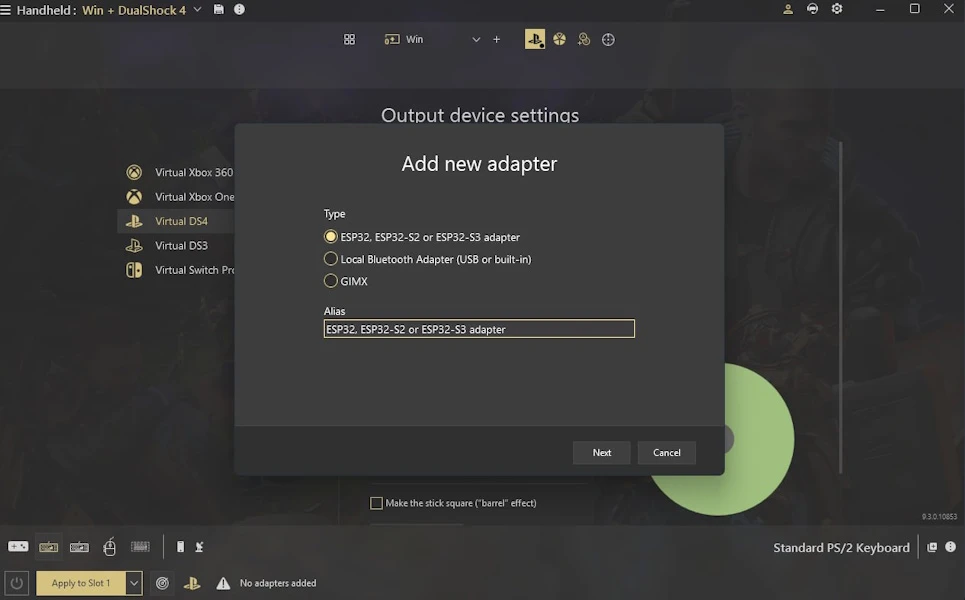
Add new adapter
Choose the type of adapter you want to add, ESP32-S2/S3 adapter, in this case. Change its alias if needed, and click 'Next'.
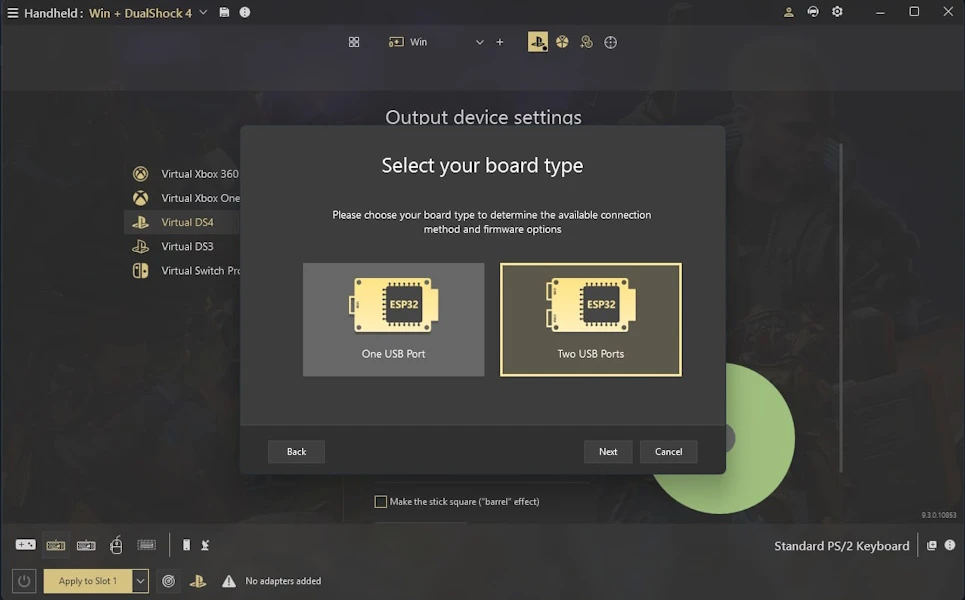
Select the board type
Choose whether your ESP32-S2/S3 board has one or two USB ports. Wi-Fi connection is supported on both types of boards.
Waiting for adapter to connect
Now plug in or replug your ESP32-S2/S3 adapter to your PC, so we could detect a new port. Once we detect it, the Next button is enabled, and you can proceed to the further step. After the adapter was plugged in, the board initialization process starts automatically.
Checking the board
At this step, we detect the connected ESP32 board and identify its type (ESP32-S2 or ESP32-S3) to determine the appropriate firmware options. We also check for the presence of esptool.exe, which is required to read and flash firmware to ESP32 boards.
Please, don't unplug the device while the initialisation process and till the end of setup.
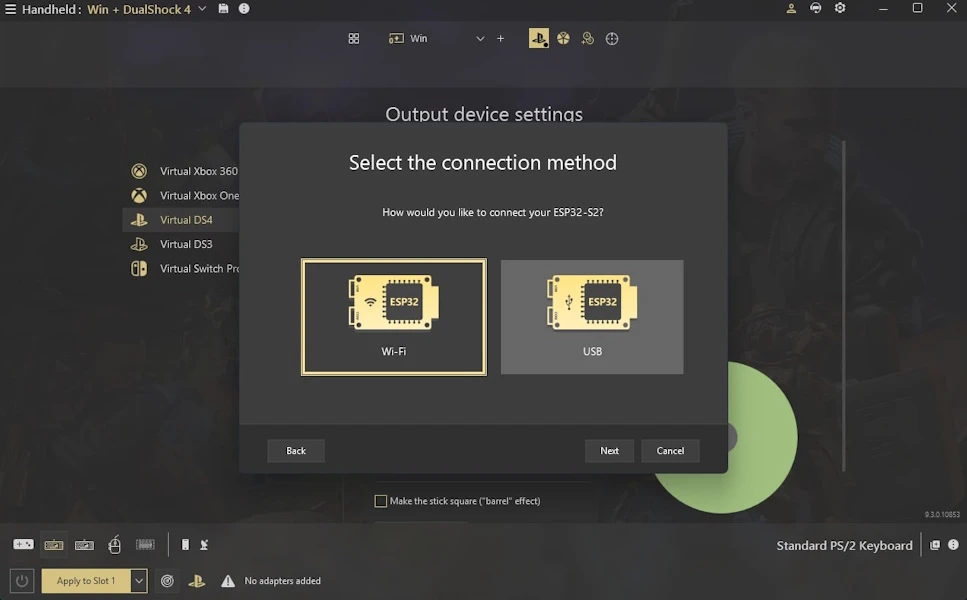
Select the connection method
Choose how you want to connect your ESP32 board to reWASD: via Wi-Fi or USB.
This step is available only for boards with two USB ports. If you want to proceed with USB connection - please check this article.
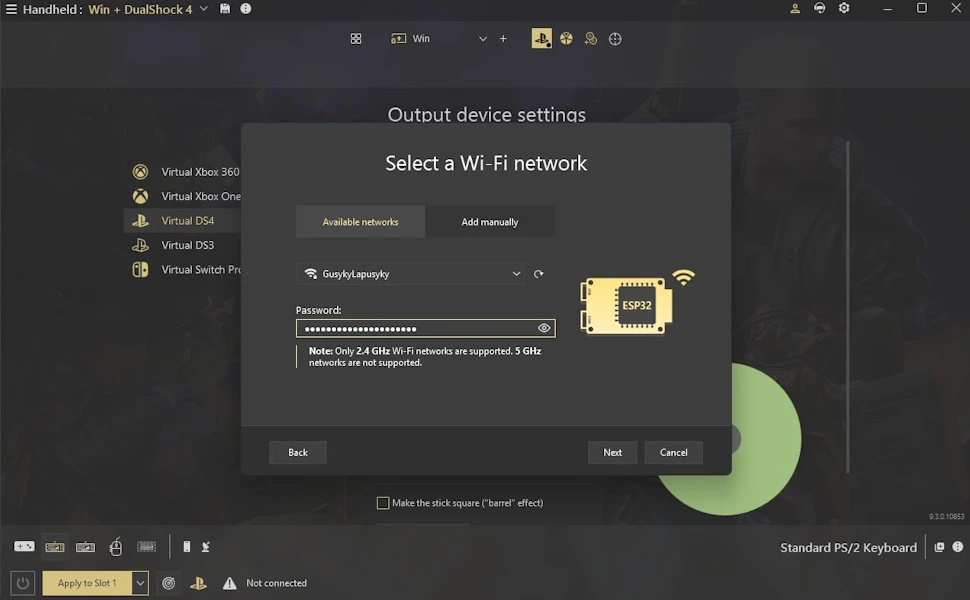
- Join the network
This tab lets reWASD scan and display available Wi-Fi networks automatically.
To detect available networks:
- Your PC must have an active Wi-Fi adapter;
- Location access must be allowed for reWASD (required by the operating system to scan nearby networks).
Select a network from the list and enter the password to continue.
- Add manually
If network scanning is unavailable, you can enter the network name (SSID) and password manually.
This option is useful if:
- Your PC doesn’t have a Wi-Fi adapter;
- Location access is disabled;
- The network doesn’t appear in the list or hidden.
Important notes:
- Only 2.4 GHz Wi-Fi networks are supported, as long as 5 GHz networks are not supported.
- Your PC and the ESP32 board must be connected to the same local network (wired or wirelessly) for reWASD to communicate with the board.
Once the network details are entered, press Next to continue.
Firmware Configuration
At this step, reWASD offers available firmware options for the detected ESP32 board.
If you’re not sure which option of firmware to select, you can choose the Generic firmware. It works with most types of boards, but may not support board-specific features such as a display or LEDs (if present).
Choose the appropriate firmware and press Next to start the installation process.
Please don't unplug the device or interrupt your internet connection. Once completed, you will be redirected to the next step.
Failed to verify the network connection
This message may appear after the firmware has been successfully installed if reWASD is unable to verify the Wi-Fi connection with the ESP32 board.
In most cases, this is not a critical error and can be resolved easily.
Why this can happen
This situation is most common with single-port ESP32 boards. After flashing, the board may need to be replugged for the Wi-Fi connection to initialize properly.
It can also occur with two-port boards if the connection could not be verified immediately, but this is quite rare.
Common reasons
- The board needs to be replugged or restarted;
- Incorrect Wi-Fi credentials were entered;
- A 5 GHz Wi-Fi network was selected (only 2.4 GHz networks are supported).
How to fix
- Replug the ESP32 board into your PC and click Check connection.
- If the connection is still not verified, click Check Wi-Fi Settings, review or re-enter the network credentials, and flash the board again.
This is a normal part of the setup process and does not indicate a hardware issue. Simply follow the on-screen instructions to continue.
Your adapter was successfully added
You are done with all setup. Press NEXT and choose the target device you want to use the virtual gamepad with.
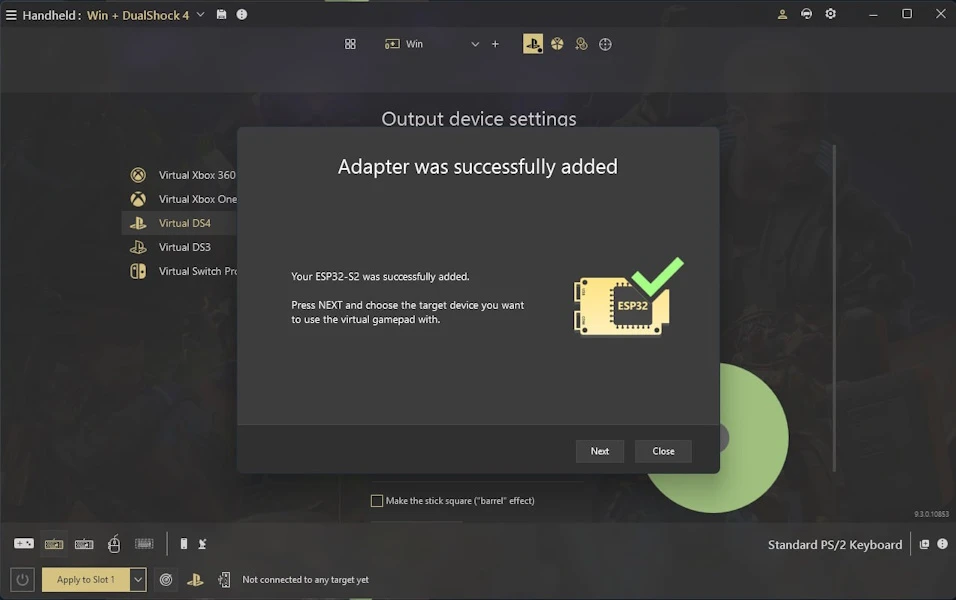
Choose an adapter for the External virtual controller
Now you need to connect your adapter to your target device. Choose the target you want to use (Xbox One, X|S, PlayStation 4, or other device) and follow the steps.
Using ESP32-S2/S3 with reWASD and Xbox One, series X|S, or PlayStation 4.
In this case you'll need an authorized DualShock 4 or Xbox One controller to be permanently connected to your PC. While using them as authorized controllers it won't be available to be used as input device.
Using ESP32-S2/S3 with Nintendo Switch console
To use a Nintendo Switch as a target device, select the "Other device" option. For a proper connection, it's better to use the Nintendo dock station.
Connect the adapter to the target device
At this step, you need to physically connect the ESP32-S2/S3 adapter to the target device you selected in the previous step.
The required actions depend on the type of ESP32 board you are using.
For single-port ESP32-S2/S3 boards
If you are using a single-port ESP32-S2/S3 board, unplug the board from your PC and connect it directly to the selected target device.
Once the board is connected, press Next to continue.
For two-ports ESP32-S2/S3 boards
If you are using a two-port ESP32-S2/S3 board, follow these steps:
- Unplug the board from your PC.
- Reconnect the board’s cable from the COM/UART port to the USB/OTG port (port names may vary depending on the board manufacturer). This step is required.
- Connect the board to the selected target device and press Next.
After the board is connected to the target device, it may take a few moments to initialize.
After the board is connected to the target device, it may take some time to initialize.
If you remain on the Connect the adapter to the target device screen and the Next button stays disabled, try reconnecting the board to the target device.
This can happen if reWASD is unable to detect the board immediately on the network.
HARDWARE ISSUES
I faced an issue "Adapter wasn't detected"
No need for concern; there are a few common issues that can be resolved with ease.
Begin by attempting to reinsert the ESP32-S2/S3 board Be mindful not to use a USB 3.2 connector. Should you be using one, attempt to reconnect the ESP32-S2 USB adapter using a USB 3.1 or earlier port, or consider utilizing a USB hub to link your ESP32-S2/S3 adapter.
I'm stuck on step "Adapter wasn't detected", replug didn't help and I'm sure that I use the proper USB ports.
It appears that there might be a shortage of native drivers. Generally, you won't need to manually install them for the ESP32-S2/S3, as Windows tends to handle this process automatically. Nevertheless, to ensure optimal functionality, we recommend confirming that the required drivers are present or installing it (you can try CP210x Universal Windows Driver or CP210x Windows Drivers as long as different boards could ask for different drivers)
After the driver installation, you can proceed by either reconnecting your adapter or initiating the setup Wizard once more for a seamless operational experience.
ESPTOOL download failed
Check your internet connection and press TRY AGAIN to start a new downloading.
ESPTOOL download failed, but I'm sure that my internet connection is stable
You can download esptool.exe manually, then start the Wizard from scratch.
Follow the steps:
- Follow the link and find here the latest version of Esptool
- Download Esptool and unpack it
- Get esptool.exe and put it here: C:\programdata\Disc-Soft\reWASD\esptool
- Get back to reWASD and add your adapter with reWASD Wizard from scratch.
The firmware update failed
Please ensure that your ESP32-S2/S3 board is correctly plugged in and attempt to reinsert it. Additionally, confirm that you are not using a USB 3.2 connector. If you are indeed using a USB 3.2 connector, consider disconnecting and then reconnecting the ESP32-S2/S3 board using a USB 3.1 or lower port. Alternatively, you can use a USB hub to establish a connection with your ESP32-S2 adapter.
The firmware update failed, but native drivers are installed and everything is plugged in properly
It's quite a rare error, but we identify it. Just follow the instruction from Wizard. Before flashing new firmware on your ESP32 adapter hold BOOT, then press EN (RESET) briefly to enter the bootloader, then release BOOT. Then press "Try again".
F.A.Q.
I don't need an ESP32 adapter. How to delete it?
You can delete your adapter in the Adapter settings by clicking "x" in the right menu.
How to erase firmware?
You can erase the reWASD firmware on your ESP32-S2/S3 adapter by checking the "Erase adapter firmware" checkbox. Please ensure that the esptool.exe is stored in the correct path, which is: C:\ProgramData\Disc-Soft\reWASD\esptool.
Please note, for two-ports ESP32-S2/S3 boards it should be connected to PC via COM port.
What is esptool.exe?
Esptool.exe is a utility that helps to read and write firmware to the ESP32 board. It is an official tool developed by Espressif Systems, the creators of ESP32, and it is widely used by developers and enthusiasts for programming and debugging ESP32-based projects. The utility supports various firmware formats, including binary, Intel Hex, and ELF, and it can communicate with the board through a USB-to-serial adapter or directly via the ESP32's bootloader.
In the context of reWASD, esptool.exe is used to flash the firmware onto the ESP32-S2/S3 board, which is required to use the virtual gamepad feature.
esptool.exe should be stored here: C:\programdata\Disc-Soft\reWASD\esptool That's where reWASD can find it and use it for firmware flashing or erasing.
I flashed my ESP32 with the wrong firmware. What should I do?
Remove the adapter from the list in Adapter settings and start the adapter setup process again.
When removing the adapter, you may see an option to erase the firmware, but this is not required. During the setup process, reWASD will prompt you to flash the correct firmware anyway and overwrite the existing one.